Your most reliable, affordable, and feature-rich messaging platform | Become a Reseller (Join Us)
This feature typically allows users to manage and organize contacts into groups, ensuring streamlined communication for marketing campaigns, notifications, or any scenario where mass messaging is required.
The sender’s identity is often represented by an approved Sender ID or brand name for a professional and recognizable communication experience.
- Login into your account:
• Visit sms.tonkra.com and log in using your credentials.
- Create a Contact Group:
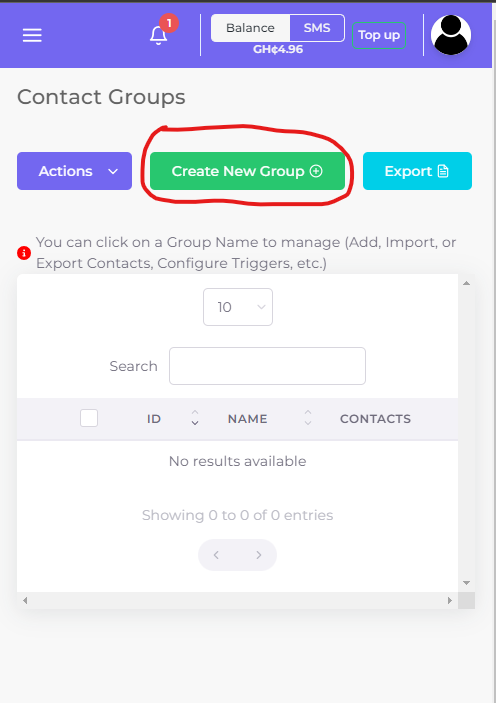
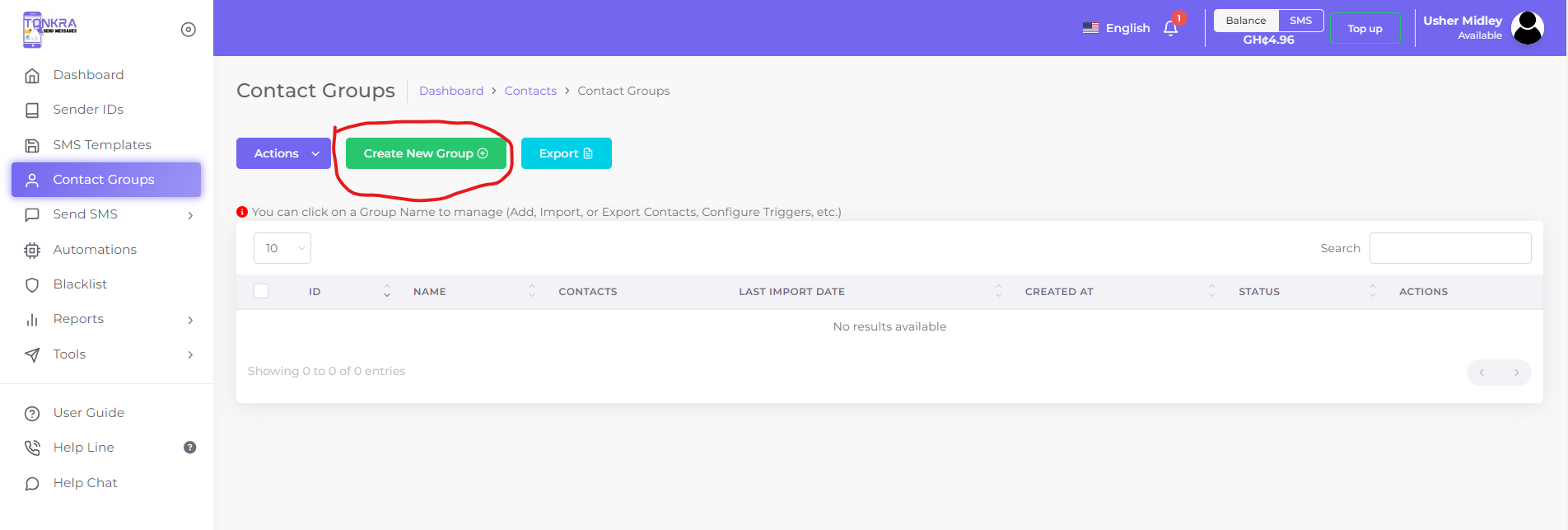
- Navigate to the “Contact Groups” page from the menu.
- Click Create a new Group
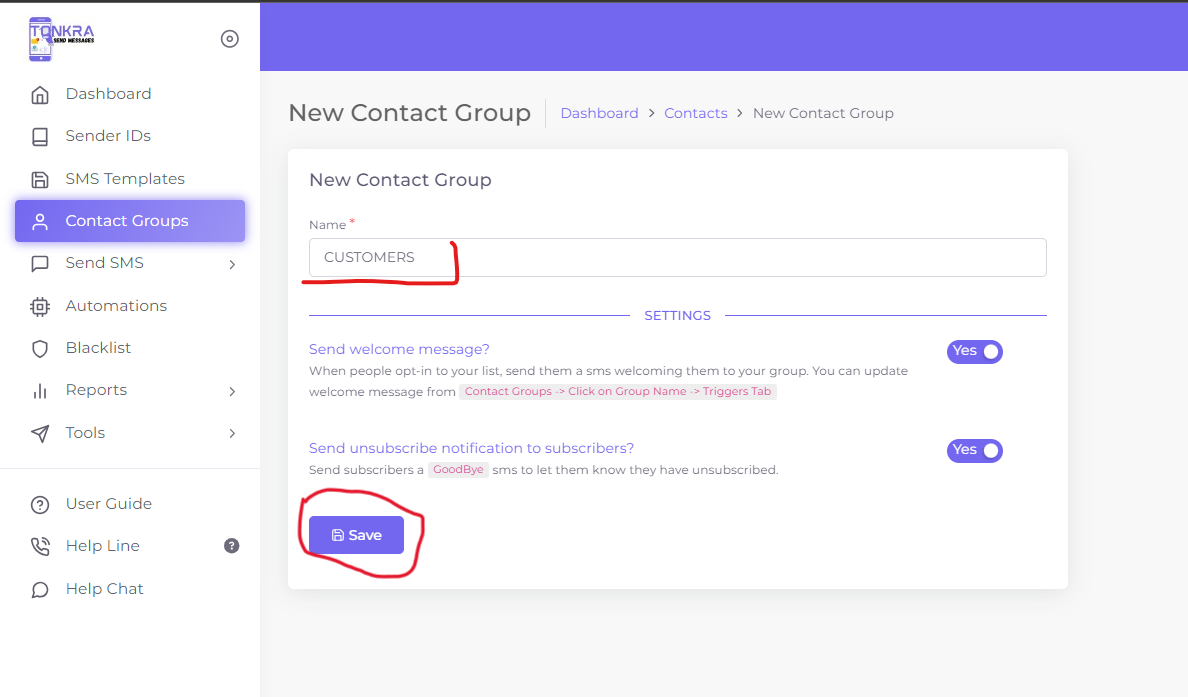
- Enter Group Name or Title:
- Create a new group and assign a name or title.
- Add or Import Contacts:
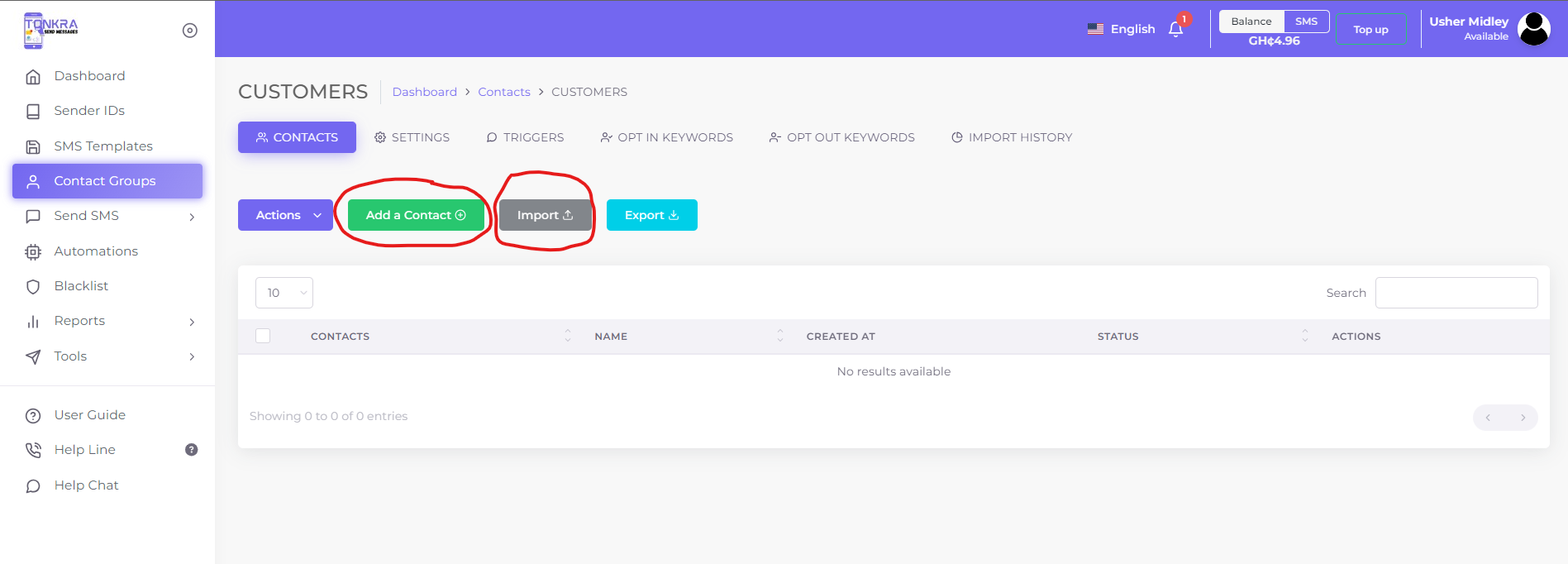
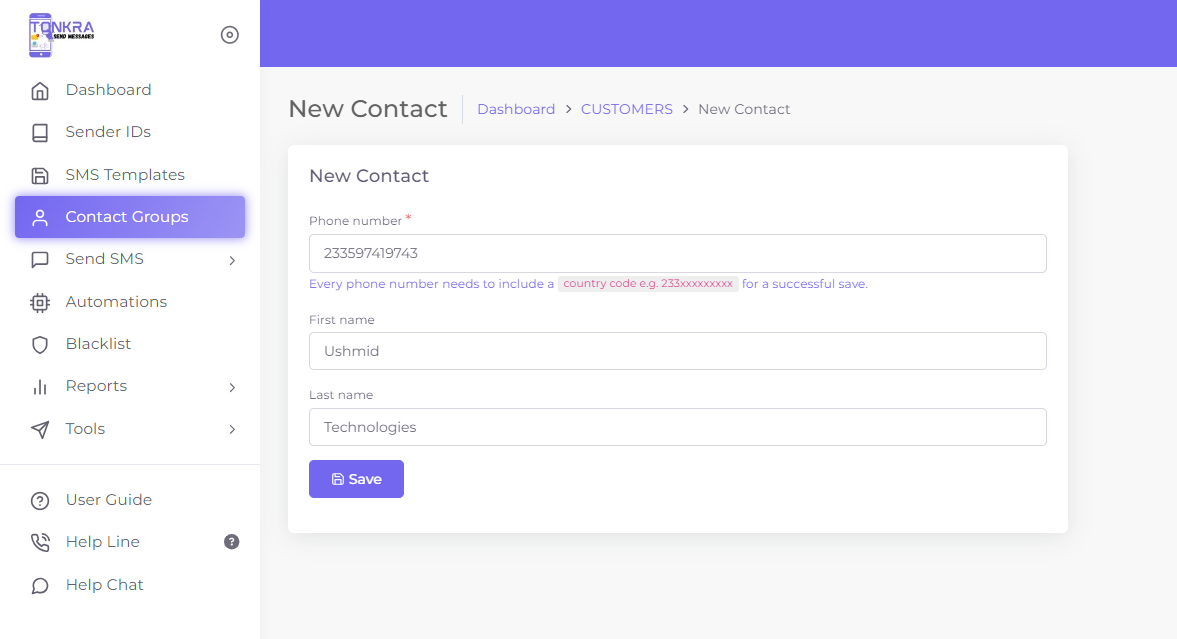
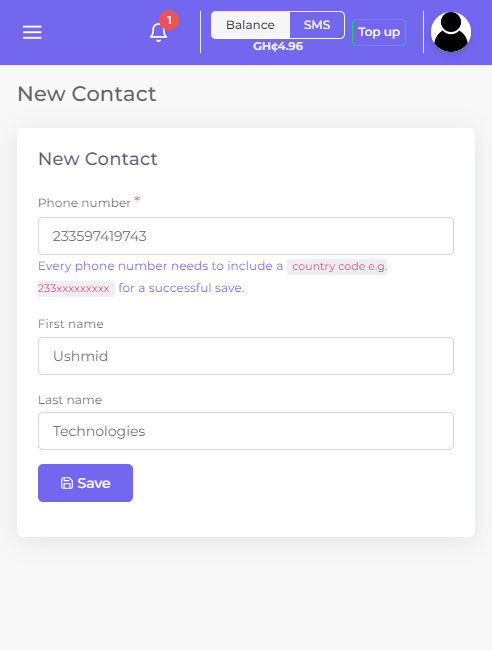
- To add a single contact, enter the phone number.
To Import Multiple Contacts:
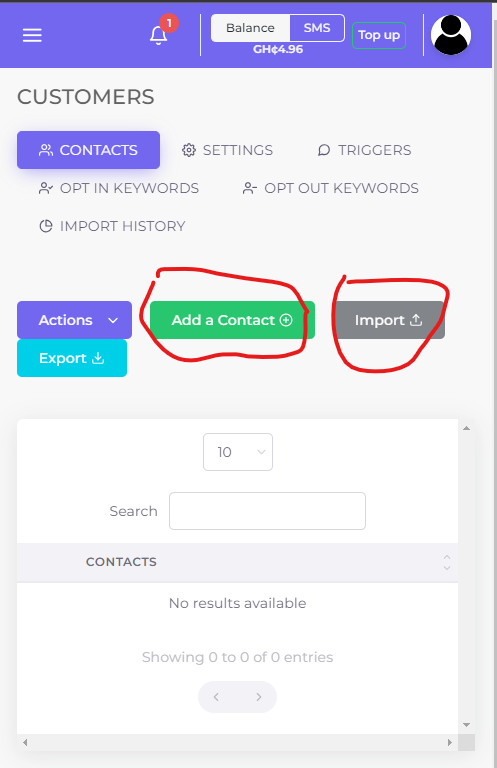
- Click the “Import” button as seen in the screenshot above.
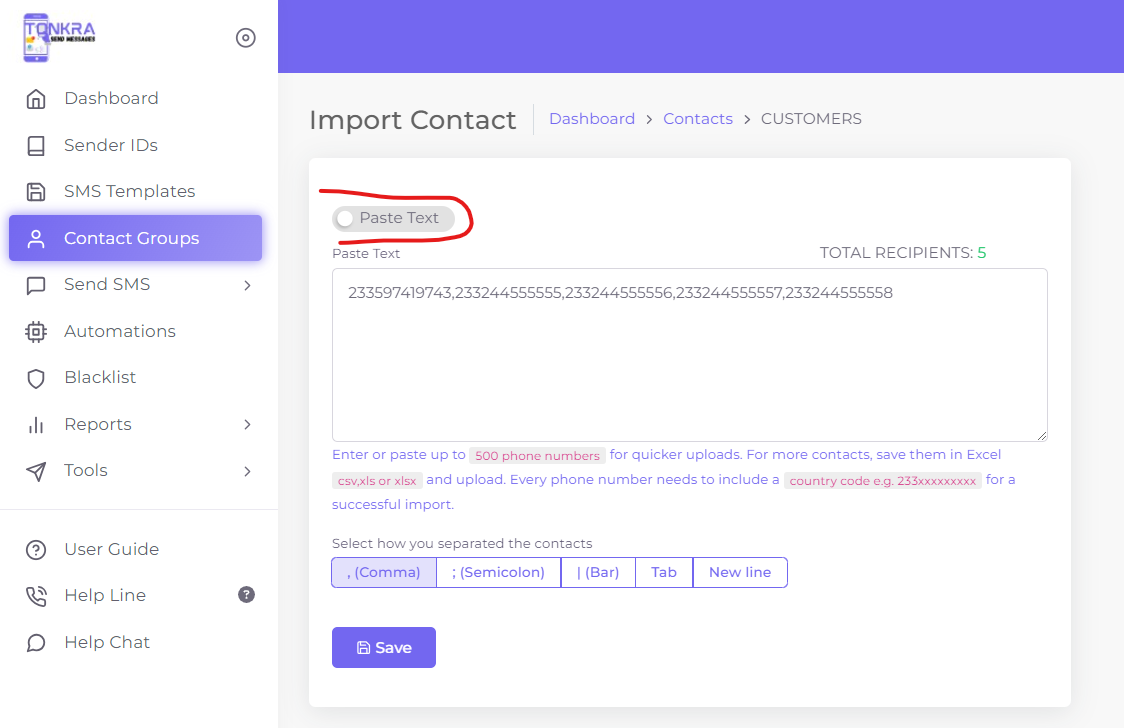
- You can toggle use the Paste Text option as demonstrated in the image below;
- Note: This way, you will have to enter only Phone numbers, and should begin with the country code without + or 0 e.g. 233597419743
- Click “Save” button to have the contacts imported
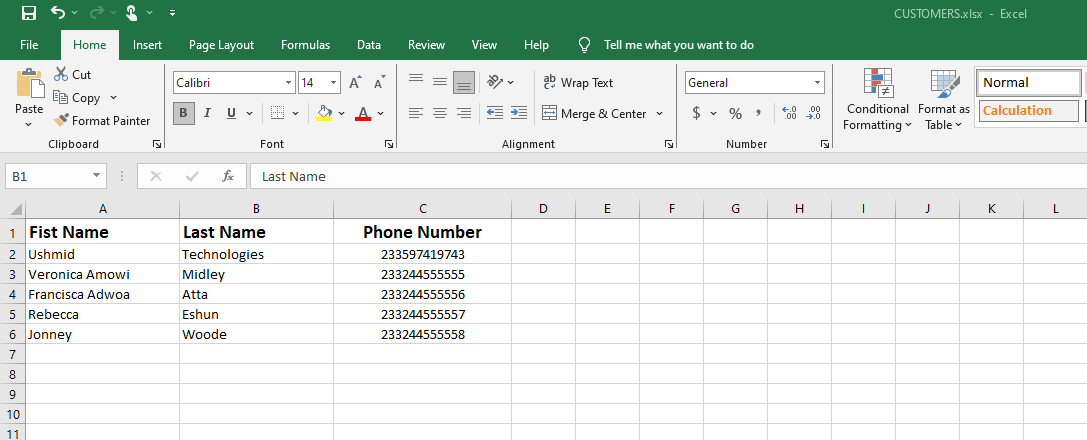
- For bulk import with Microsoft Excel, prepare your data as seen in the image below.
- Note: File must have phone number column and must be in country code format e.g. 233xxxxxxxxx Supported file types are: Excel csv, xls, xlsx Supported Date Columns, formats are: 2/1/90, 2/1/1990, and 1990-01-21.
- Click Import Button:
- Click on the “Import” button for bulk contacts.
- Drag and Drop or Select Excel File:
- Drag and drop or select the Excel file containing your contacts and click “Save“
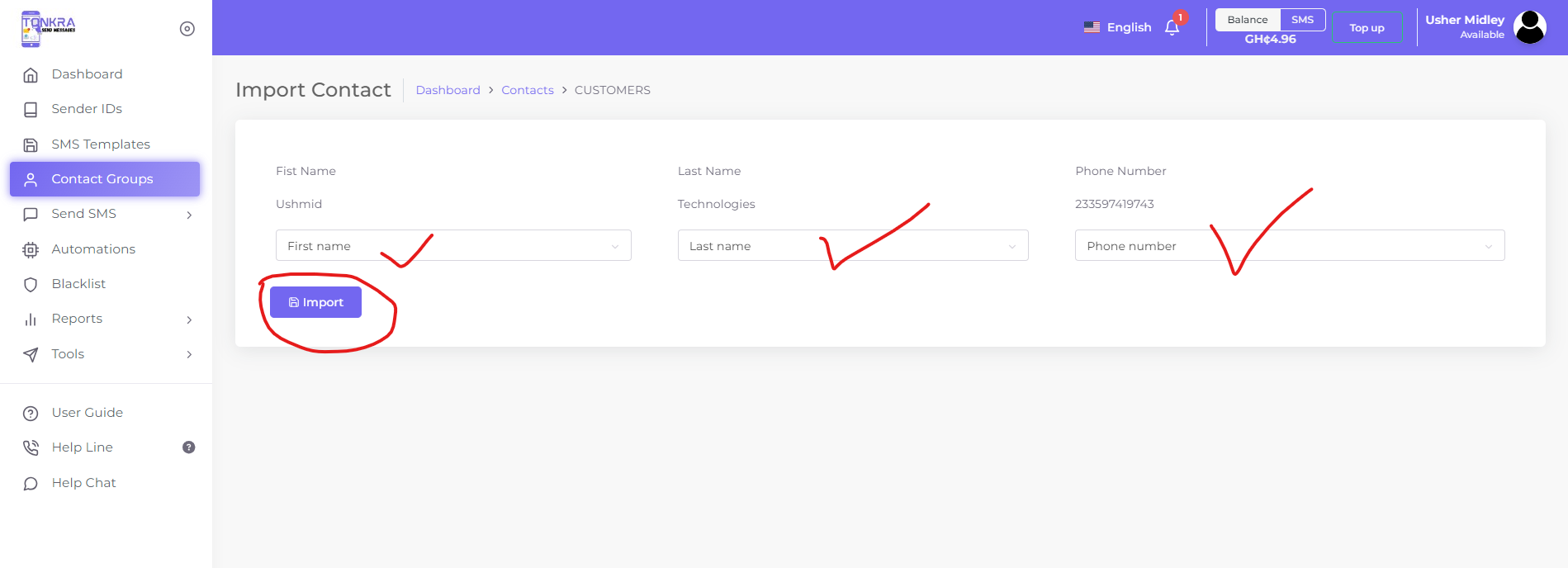
- Select Fields:
- Identify and select fields corresponding to the columns appropriately. and click “Import“
- Note: Only the Phone number column is mandatory, and should begin with the country code without + or 0 e.g. 233597419743
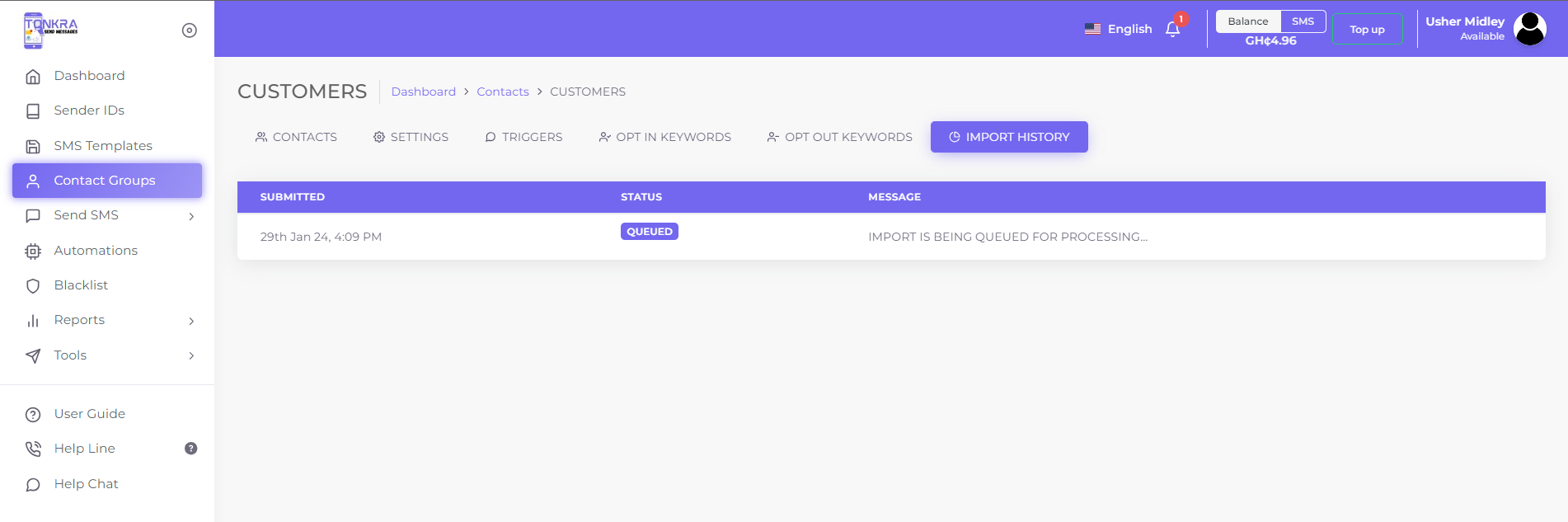
- Import History:
- Wait for a few seconds to minutes based on data size.
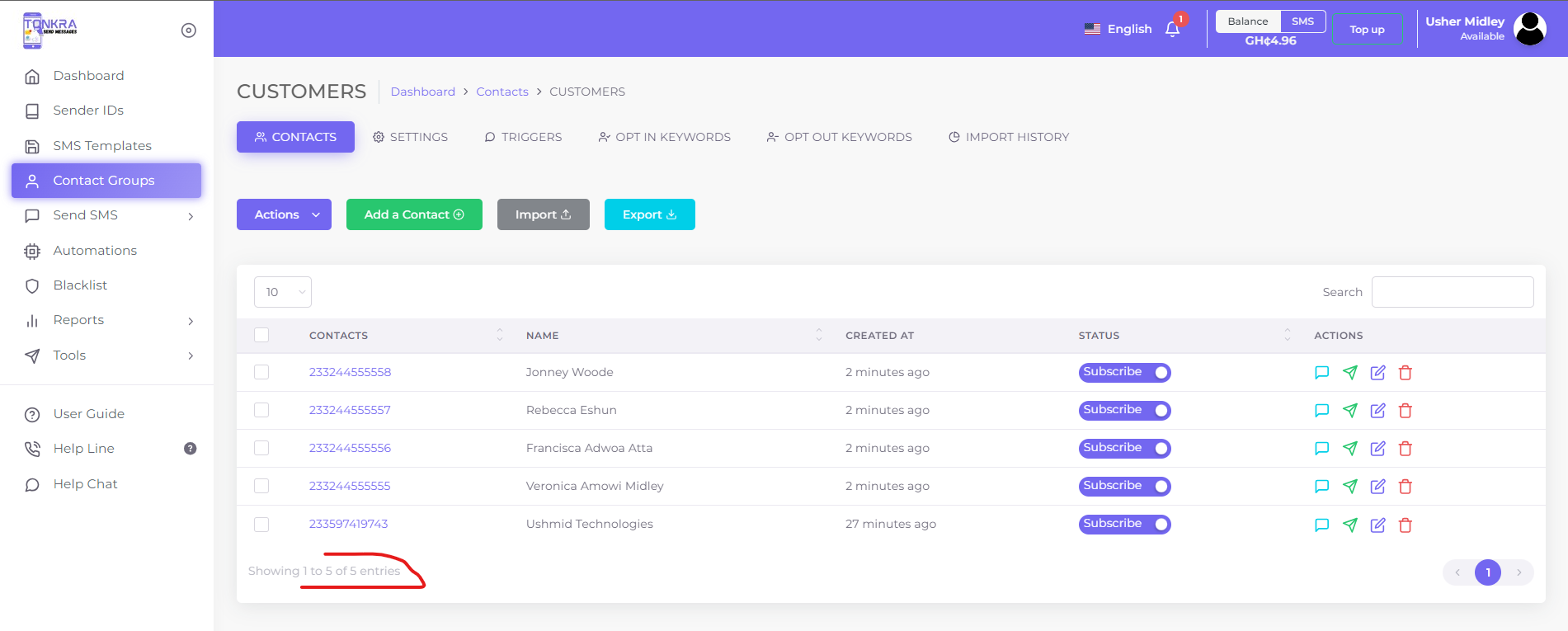
- Refresh to check if the import is completed.
- Group SMS Feature:
- Utilize the Group SMS feature to send Bulk SMS to all contacts in the group (multiple groups can be selected).
- Ensure that you have an approved Sender ID.
To track the message-sending status, go to Reports >> Campaigns and click the overview icon to monitor the progress.
Here you can pause, resume or resend a campaign.
DON’T HAVE AN ACCOUNT? SIGN UP TODAY!
It’s simple and straight forward!